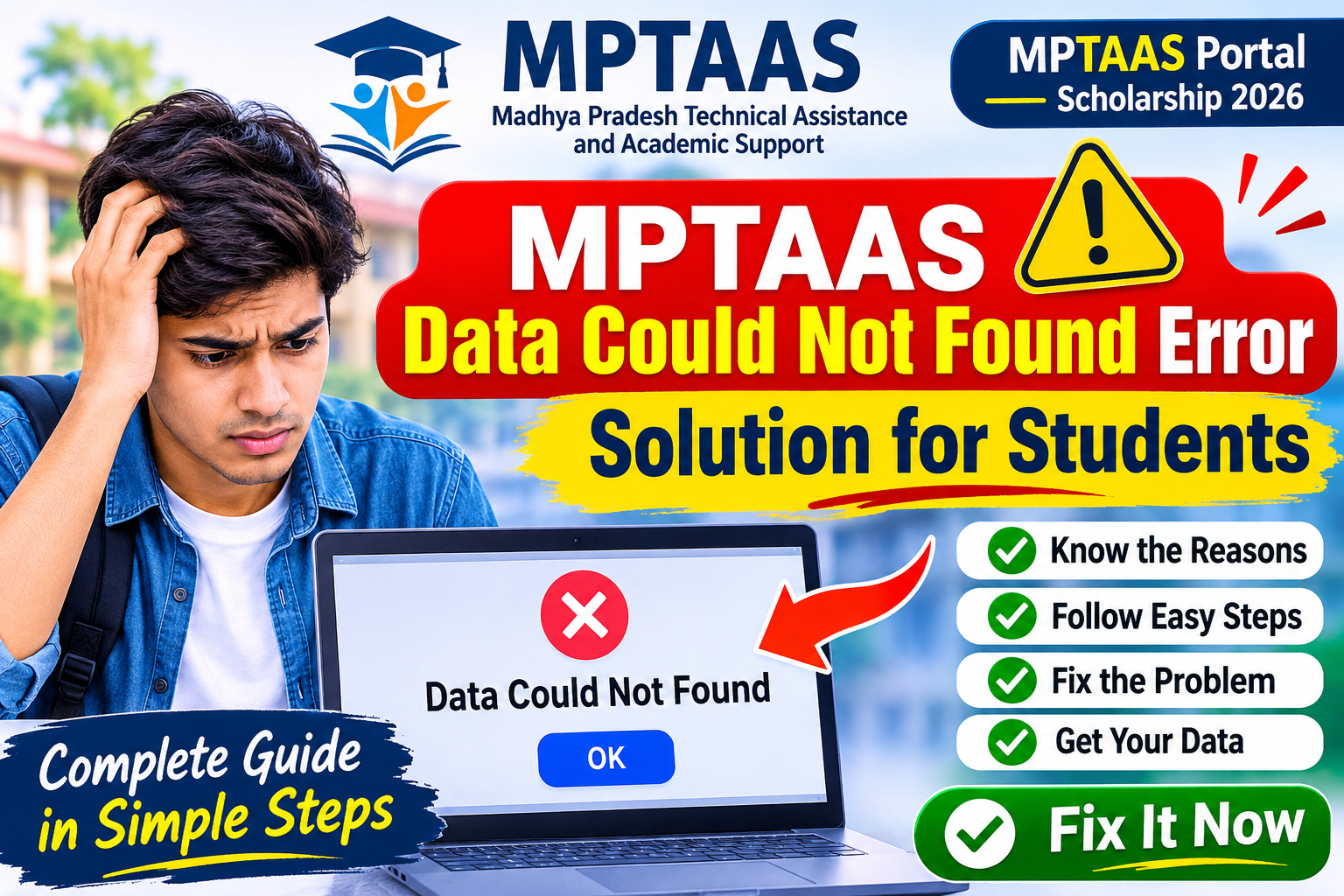
MPTAAS Data Could Not Found Error: Solution for Students
Are you trying to register on the MP TAAS portal and seeing “Data Could Not Found”? Don’t worry. This is a common Difficulty for many students during profile Enrollment, Samagra ID verification, or scholarship form filling.This error usually means the Platform is not able to find your details from the Linked government Reports.
The MPTAAS API Error can happen because of an incorrect Samagra ID, Aadhaar mismatch, incomplete e-KYC, Obsolete records, or a Brief portal issue. MPTAAS is the Madhya Pradesh Tribal Affairs and Scheduled Caste Social Assistance System used for scholarship and welfare services.
Quick Answer
The MPTAAS Data Could Not Found error Seems when the portal cannot fetch your Individual details from Samagra, Aadhaar, or related records. To resolve the issue, verify your Samagra ID, ensure you are using the individual member ID, update your Samagra e-KYC information, check that your Aadhaar details match, clear your browser cache, and then try again after some time.
Why Does MPTAAS Show Data Could Not Found?
This error can come for many small reasons. Here are the most common ones.
Wrong Samagra ID Entered
Many students enter the family Samagra ID instead of the individual member Samagra ID.For MPTAAS registration, you usually need the student’s individual Samagra member ID. If you enter the wrong ID, the portal may not find your data.
Inspect Thoroughly:
-
Samagra ID digits
-
Student Associate ID
-
Name on Samagra
-
Date of birth
-
Family Particulars
Samagra Details Are Not Updated
If your Samagra Account has old or incomplete details, MPTAAS may Does not succeed to fetch your record.
Check if these Information are correct:
-
Student name
-
Father’s name
-
Mother’s name
-
Date of birth
-
Gender
-
Community Classification
-
Mobile number
-
Aadhaar link
If any detail is Mistaken, update it on the Samagra portal first.
Aadhaar and Samagra Details Do Not Match
MPTAAS may show this error when Aadhaar and Samagra records are different.
Example:
-
Name spelling is different
-
DOB is different
-
Gender is different
-
Aadhaar is not linked
-
Mobile number is not active
Even a small spelling difference can create a problem.
Aadhaar e-KYC Is Not Completed
Some students face Enrollment errors because Aadhaar e-KYC is not done or not Authenticated. Public results around MPTAAS errors also show students facing e-KYC and DOB verification Troubles.
Before Requesting, check that:
-
Aadhaar is Operational
-
Aadhaar mobile number is working
-
DOB is correct in Aadhaar
-
e-KYC is completed
-
Aadhaar is linked with Samagra
Portal Server Issue
Sometimes your details are Accurate, but the MPTAAS server is Occupied, Producing the Page Not Opening issue. This Normally Takes Place during scholarship Term when many students Admission the portal at the same time. If the portal is slow or the page is not opening, wait for some time and try again In the Course of low-traffic hours.
Best period to try:
-
Early morning
-
Late night
-
Non-peak hours
-
Before the last date rush
Browser Cache Problem
Old browser data can also create errors.
Try this:
-
Clear Temporary Storage and Sweet Biscuits
-
Use Chrome browser
-
Try Anonymous mode
-
Turn on Workstation mode on mobile
-
Relaunch your device
-
Utilize a different phone or laptop
How to Fix MPTAAS Data Could Not Found Error
Follow these steps one by one.
-
Examine Your Samagra ID
First, Validate that you are Logging in the Accurate individual Samagra ID.Do not enter:
-
Family ID by mistake
-
Wrong member ID
-
Someone else’s Samagra ID
-
Incomplete number
Match Samagra and Aadhaar Details
Your name, DOB, gender, and other Fundamental details should match in both records.If there is a Inconsistency, correct it first. Do not keep trying again and again with wrong data.
Update Samagra e-KYC
If your Samagra e-KYC is pending, complete it. After updating, wait for the data to refresh. Then try MPTAAS Enrollment again.
Check Aadhaar Mobile Number
OTP problems can also stop Confirmation . Make sure your Aadhaar-linked mobile number is Functional and with you.If the number is old or closed,Modify it first.
Clear Browser Cache
Open browser Preferences and clear cache/cookies. Then open the MPTAAS portal again.
You can also try:
-
Chrome incognito mode
-
Another browser
-
Another device
-
Better internet connection
Try Again Later
If the error is due to server load, no correction is needed from your side. Wait for some time and try again.Do not submit the same request too many times.
What Not to Do
Avoid these mistakes:
-
Do not create multiple profiles
-
Do not use wrong Samagra ID
-
Do not use fake details
-
Do not refresh again and again
-
Do not wait until the last date
-
Do not pay anyone for a “guaranteed fix”
Most errors happen because of data mismatch or portal load. Stay calm and check details slowly.
When Should You Contact Support?
Contact your college, MP Online center, or official helpdesk if:
-
Error comes for 2–3 days
-
Your Samagra and Aadhaar details are correct
-
e-KYC is completed but data is still not found
-
OTP is not coming
-
Your caste or DOB details are wrong
-
Profile already exists but you cannot log in
Take a screenshot of the error before asking for help. It makes the problem easier to explain.
FAQs
What does Data Could Not Found mean in MPTAAS?
It Indicates the portal cannot find your details from Samagra, Aadhaar, or connected records.
Is this error a scholarship rejection?
No. It is a registration or Data Access error, not a Denial .
Which Samagra ID should I enter in MPTAAS?
Use the student’s individual Samagra member ID, not the family ID.
Can Aadhaar mismatch cause this error?
Yes. Name, DOB,Gender Identity, or mobile mismatch can stop data access.
Can I fix this error myself?
Yes, in many Instances. Review Samagra ID, update e-KYC, Agree Aadhaar details, and try again.
What if the Bug Yet Reaches Later Revision?
Wait for some time and then contact your college, MP Online center, or official support with a screenshot.
Final Words
The MPTAAS Data Could Not Found error does not mean your scholarship is rejected. It simply means the Gateway is not able to find or fetch your details. Start by Inspecting your Samagra ID. Then match your Aadhaar and Samagra details, complete e-KYC, clear your browser cache, and try again during low-traffic hours.A small correction in Samagra or Aadhaar can solve the whole problem.