MPTAAS Login Page Not Opening 2026 Fix Guide for MP Students
Is the MPTAAS login page not opening on your phone or laptop? Do not worry. Many MP students face this problem while trying to log in, register a profile, check scholarship status, or reset their password. Most of the time, the problem is small.
It may be due to slow internet, heavy portal traffic, outdated browser data, incorrect login details, or a temporary server issue. In this guide, you will learn simple fixes you can try before visiting your college, cyber cafe, or department office.
What to Do First?
If the MPTAAS login page is not opening, first refresh the page and check your internet. Then try opening the official MPTAAS portal in Chrome, clear your browser cache, turn off your VPN, and try again after some time. If the portal opens but login fails, check your User ID, password, captcha, and OTP.
Why Is the MPTAAS Login Page Not Opening?
There is not always one single reason. The issue can happen from your side or from the portal side.
Common reasons are:
The good thing is that most of these issues can be fixed in a few minutes.
Check If You Are Using the Official Portal
Many students search on Google and click any random result. This can create confusion because some pages are only information websites, not the real login page. Always use the official MPTAAS portal from the Madhya Pradesh Tribal Affairs / SC Welfare Department website. You can search for:
MPTAAS official portal tribal MP
Then open the government website only. After opening the portal, look for options like student login, beneficiary profile registration, forgot password, or scholarship services.
Tip: Do not enter your password, Aadhaar details, Samagra ID, or OTP on unknown websites.
Refresh the Page Properly
Sometimes the login page gets stuck while loading. Do not keep pressing the login button again and again.
Try this:
If the website is slow, give it some time. Government portals may load slowly during scholarship form dates.
Clear Browser Cache and Cookies
Old browser data can stop the login page from opening properly. This is a common issue, especially if you have used the portal many times before.
For Chrome users:
After clearing cache, the page may load fresh.
Try Incognito Mode
Incognito mode opens the page without old saved data. This is one of the easiest fixes.
Steps:
If the page opens in incognito mode, the problem was likely due to cache, cookies, or browser extensions.
Use Another Browser
If the MPTAAS page is not opening in one browser, try another browser.
You can try:
- Google Chrome
- Microsoft Edge
- Mozilla Firefox
- Samsung Internet
Avoid very old browsers. Also, update your browser from the Play Store or App Store if it hasn’t been updated in a long time.
Turn Off VPN or Proxy
If you are using a VPN, proxy app, or private DNS, turn it off for some time. Some government portals may not load correctly when VPN is active.
After turning it off:
This simple step fixes the issue for many students.
Check Your Internet Connection
The MPTAAS login page may not open if your internet is weak.
Try these quick checks:
If your internet speed is low, the captcha and login page may take more time to load.
Try During Low-Traffic Time
During scholarship deadlines, many students open the portal at the same time. This can make the MPTAAS server slow or temporarily unavailable.
Best time to try:
Do not panic if the page is not opening during busy hours. Try again later.
Check Captcha Carefully
Sometimes the page opens, but login does not work because the captcha is wrong or not loading.
Try this:
If the captcha still does not show, clear your cache or try incognito mode.
Check User ID and Password
If the MPTAAS login page opens but you cannot log in, check your details.
Common mistakes:
Type your details slowly. Do not copy and paste if it adds extra spaces.
Use Forgot Password Option
If you forgot your password, do not keep trying random passwords. This may create more problems.Use the Forgot Password option on the official login page. You may need details like profile ID, User ID, registered mobile number, or OTP.After resetting the password, write it down safely in a notebook or save it in a secure password manager.
OTP Not Coming?
Many students face OTP problems while using MPTAAS.
Try this:
If your mobile number is not active anymore, you may need help from your institute or the concerned department.
Login Page Opens on Laptop but Not Phone
If the page works on a laptop but not on your phone, the phone browser may be the issue.
Try these steps:
To turn on desktop site in Chrome, tap the three dots and select Desktop site.
Login Page Opens on Phone but Not Laptop
If the page opens on your phone but not on your laptop, try this:
Wrong date and time settings can sometimes stop secure websites from opening correctly.
Do Not Use Old Bookmarked Links
If you saved an old MPTAAS link in your browser, it may not work now. Government portals sometimes change page paths.
Instead of using an old bookmark:
This helps avoid broken or outdated links.
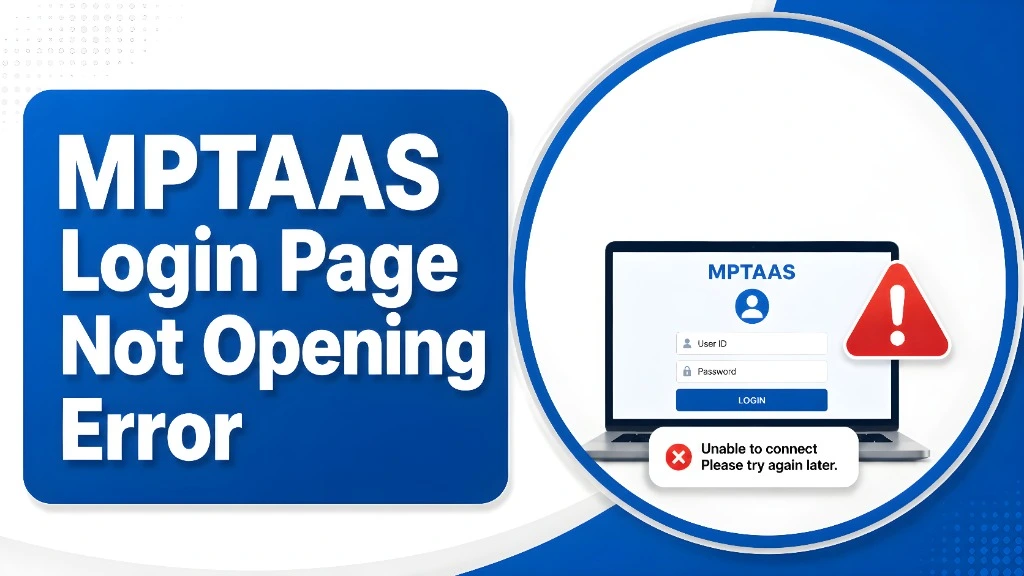
MPTAAS Login Page Not Opening Error
| Problem | Simple Fix |
| Page not loading | Refresh, check internet, try later |
| Server busy | Try during low-traffic time |
| Captcha not showing | Clear cache or use incognito mode |
| OTP not coming | Wait, check network, do not resend too fast |
| Wrong password | Use forgot password |
| Page blocked | Turn off VPN or ad blocker |
| Link not working | Open portal from official homepage |
| Mobile issue | Try desktop site or another browser |
| Laptop issue | Try hotspot, update browser, restart device |
What Students Should Keep Ready Before Login
Before logging in, keep these details ready:
This saves time and reduces login mistakes.
Safety Tips for MP Students
Be careful while using MPTAAS from a cyber cafe or shared computer.
Follow these safety tips:
Your scholarship details are personal. Keep them safe
When Should You Contact Your College or Department?
You should ask for help if:
In such cases, your college scholarship officer or department office can guide you better.
FAQs
Final Words
If the MPTAAS login page is not opening in 2026, do not panic. First check your internet, official portal link, browser cache, VPN, captcha, and login details. Most problems are temporary and can be fixed by trying another browser, using incognito mode, or logging in after some time.
For MP students, the safest method is simple: use the official portal, keep your details ready, and never share your OTP or password with anyone.


