MPTAAS No Response From API Error: Easy Fix Guide
If you are trying to create your MPTAAS profile and suddenly see “No Response From API”, don’t panic. Many students face this problem during registration, login, Samagra ID verification, or profile update.In simple words, this error means the MPTAAS portal is not getting a proper reply from another connected system.
It can happen because of a server issue, Samagra ID data problem, Aadhaar e-KYC mismatch, slow internet, or heavy traffic on the portal.MPTAAS is the official Madhya Pradesh Tribal Affairs and Scheduled Caste Welfare Automation System, used for scholarship and welfare-related services.
Quick Answer
The MPTAAS No Response From API error usually occurs when the portal cannot fetch your details from Samagra, Aadhaar, or another government database. In some cases, users may also see the Data Could Not Found error for the same reason.
To fix it, try again after some time, use a different browser, clear your cache, check your Samagra ID, update Aadhaar/Samagra e-KYC, and make sure your name, date of birth, caste, and mobile number are correct.
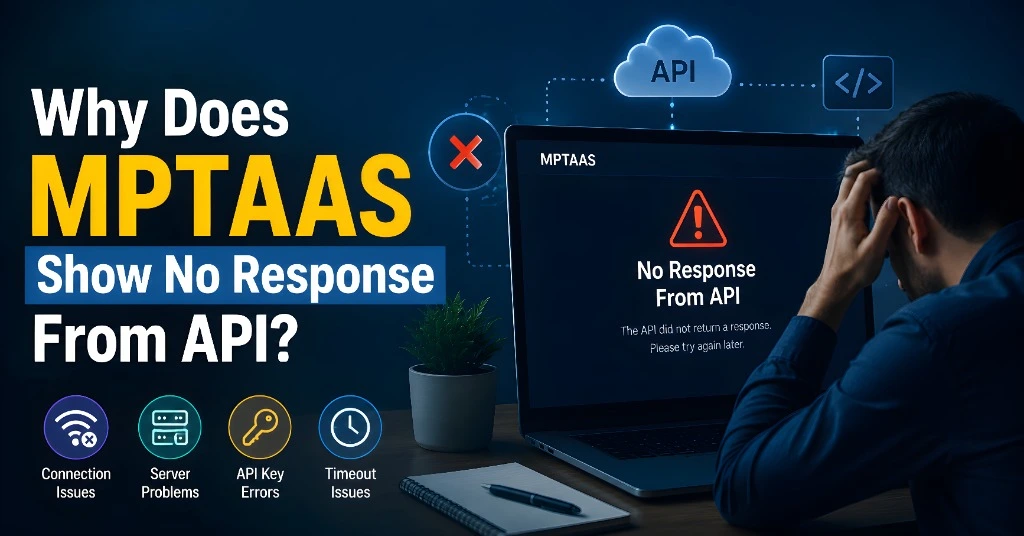
Why Does MPTAAS Show No Response From API?
This error can come for several reasons. The most common ones are:
During scholarship season, many students use the portal at the same time. Because of this, the server may not respond properly.
If your name, date of birth, gender, or family details are different in Samagra and Aadhaar, the portal may fail to fetch your data.
MPTAAS often depends on Aadhaar-based verification. If your e-KYC is not updated, registration may stop.
If your mobile number is not linked with Aadhaar or Samagra, OTP and verification can fail.
Sometimes the issue is not from the portal. Old browser data, cookies, or a slow phone browser can also create this error.
If the portal is under maintenance, you may see this error even if your details are correct.
Students have also reported portal loading issues, Samagra ID errors, and OTP verification failures while using MPTAAS.
How to Fix MPTAAS No Response From API Error
Follow these steps one by one.
Wait and Try Again Later
First, do not submit the form again and again. Wait for 15–30 minutes and try again.
Best time to use the portal:
Early morning
Late night
Non-peak hours
Avoid last-date rush
If the server is busy, this simple step may solve the issue.
Use Chrome Browser or Incognito Mode
Open the MPTAAS portal in Google Chrome. If you are already using Chrome, open it in Incognito Mode.
Also try this:
Clear browser cache
Clear cookies
Close extra tabs
Restart your phone or laptop
Use desktop mode on mobile
Many portal errors happen because of old saved browser data.
Check Your Samagra ID Carefully
During MPTAAS profile registration, you must enter the correct Samagra ID. The official profile registration page fetches details from Samagra records.
Check these things:
Enter individual Samagra ID, not family ID
Check all digits carefully
Make sure the Samagra ID is active
Your name and DOB should be correct
Your mobile number should be updated
Small mistakes can stop the portal from fetching your data.
Update Samagra e-KYC
If your Samagra details are old or wrong, update them first. Many sensitive details like name, DOB, gender, and caste may need correction through Samagra records, not directly from MPTAAS. Some guides also mention that these details should be corrected on Samagra first, then MPTAAS can fetch updated data.
Important details to check:
Name spelling
Date of birth
Gender
Caste category
Aadhaar link
Mobile number
After updating, wait some time and then try MPTAAS again.
Check Aadhaar Details
Your Aadhaar details should match your Samagra and scholarship profile.
Check:
Aadhaar number is correct
Aadhaar mobile number is active
DOB is correct
Name spelling is same
Aadhaar e-KYC is complete
If Aadhaar and Samagra have different details, MPTAAS may show an API error.
Use a Stable Internet Connection
Do not use a very slow network while submitting the form. If the internet drops while the portal is fetching data, it may show No Response From API.
Try:
Switching from mobile data to Wi-Fi
Turning airplane mode on/off
Restarting router
Avoiding VPN
Using a laptop if mobile fails
Do Not Refresh During OTP or Data Fetching
When you click on “Receive OTP” or “Save and Proceed,” wait for the page to load.
Do not:
Press back button
Refresh again and again
Close the browser quickly
Submit the same request many times
This can create duplicate requests and more errors.
Try From Another Device
If the problem continues, try from another phone, laptop, or computer center. Sometimes the issue is device-specific.
Use:
Updated browser
Good internet
Correct documents
Active mobile number for OTP
What Not to Do
Avoid these mistakes:
Most of the time, this error is technical or data-related. It can be solved by checking details properly.
When Should You Contact Support?
Contact your college scholarship department, official helpdesk, or MP Online center if:
FAQs
Final Words
The MPTAAS No Response From API error is common during registration and profile update. It does not always mean your scholarship is rejected. Most students can fix it by trying again later, clearing browser cache, checking Samagra ID, updating Aadhaar/Samagra e-KYC, and using a stable internet connection.
Keep your documents ready, check every detail slowly, and avoid last-minute form filling. A small mismatch in Samagra, Aadhaar, or mobile number can create a big problem on the portal.


